


How to report a wrong trip (and fix it in two taps)
Automatic detection is good, not perfect: a border town gets attributed to the neighbour, a layover becomes a trip, a stay ends a day too late. The Report this trip sheet is the fastest way to put that right. It fixes your record on the spot, in two taps, and then asks — separately, and only if you want — whether to send us the detection data behind those days so the same mistake gets rarer for everyone.
Where to find it
- Report this trip — open a trip, tap the trip-actions button in the top corner, and pick it from the menu that opens (next to Edit trip, Label trip, and Delete trip).
- Report trip — on a country’s detail screen, swipe a trip to the left.
- Something look wrong? — the link under the trip review during onboarding, right after your photos have been scanned.
Opened from a trip, the sheet pre-selects that trip (Reporting France, Mar 3 – Mar 10). Opened from onboarding, it asks you to pick the trip when a fix needs one.
Step 1 — What's wrong?
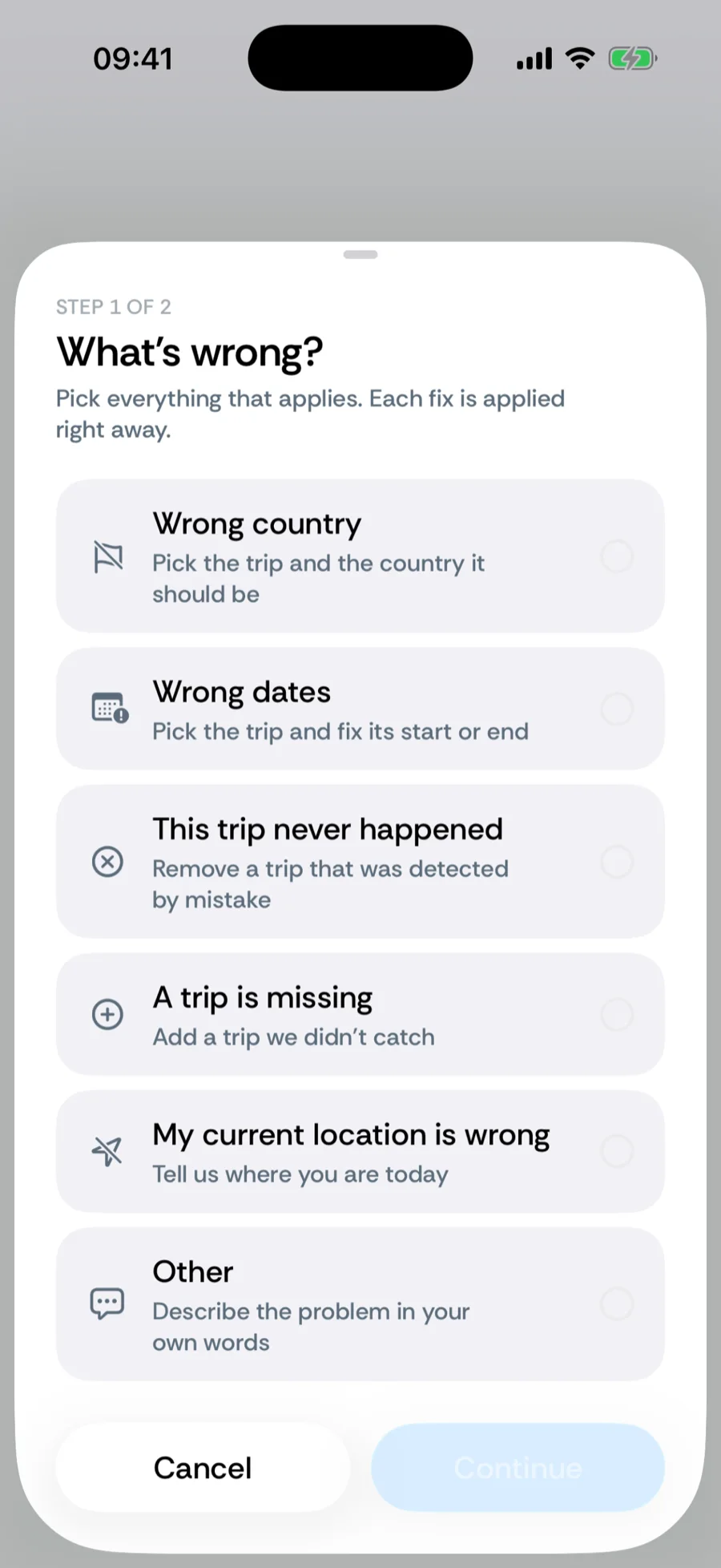
The first step is a checklist. Tick everything that applies; each item runs the matching editor and applies the fix immediately, so the sheet is useful even if you never send anything:
- Wrong country — pick the trip and the country it should be. International Waters is available here for days at sea.
- Wrong dates — pick the trip and fix its start or end in the trip editor.
- This trip never happened — remove a trip that was detected by mistake (with a confirmation first).
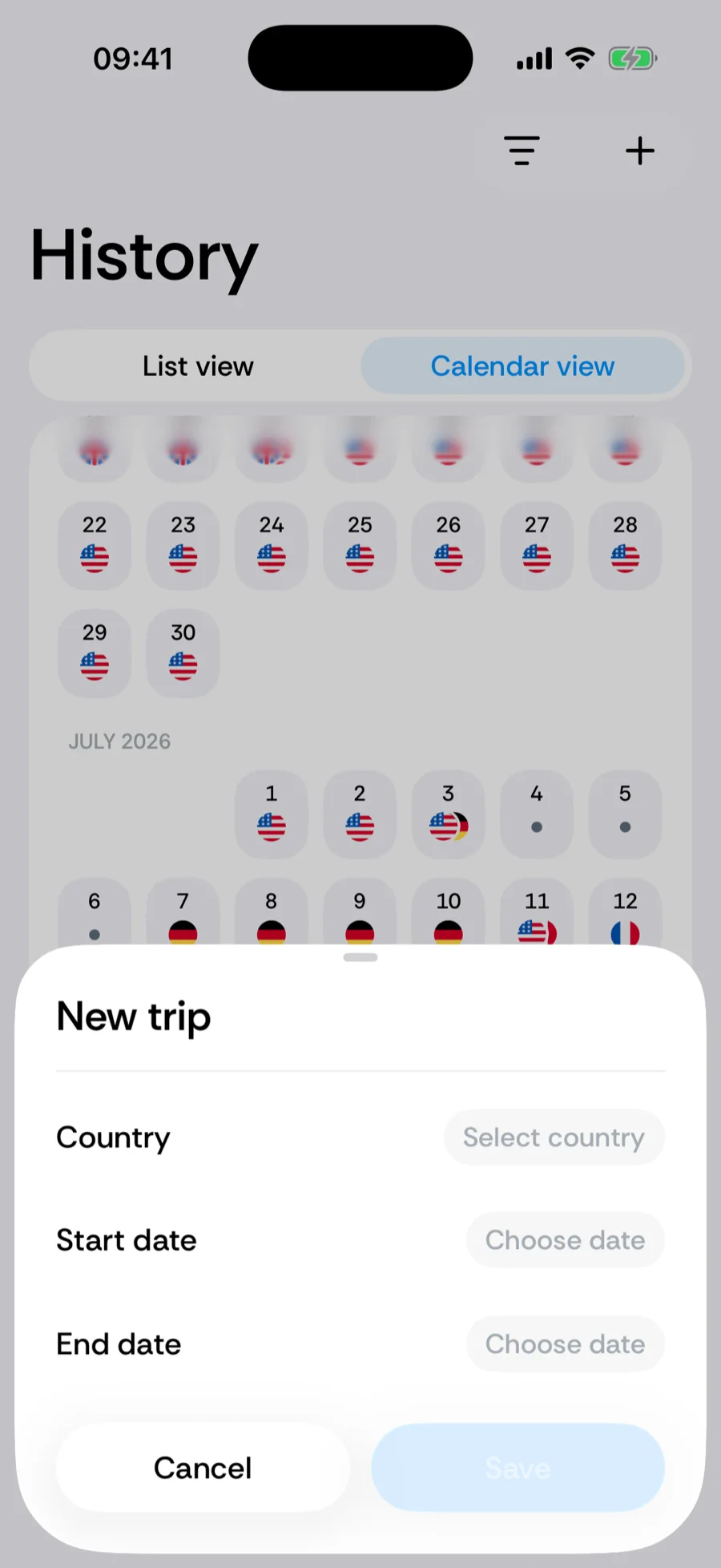
- A trip is missing — add a trip Bounded did not catch, in the New trip editor.
- My current location is wrong — tell Bounded which country you are in today.
- Other — describe the problem in your own words (up to 1,000 characters). This one changes nothing by itself; it only travels with the report.
Every applied fix appears under Your corrections at the bottom of the sheet with an Undo button, so a slip is reversed in one tap. Corrections made here are stored as manual edits, which always win over photo and GPS data. When you are done, tap Continue.
Step 2 — Send us a report?
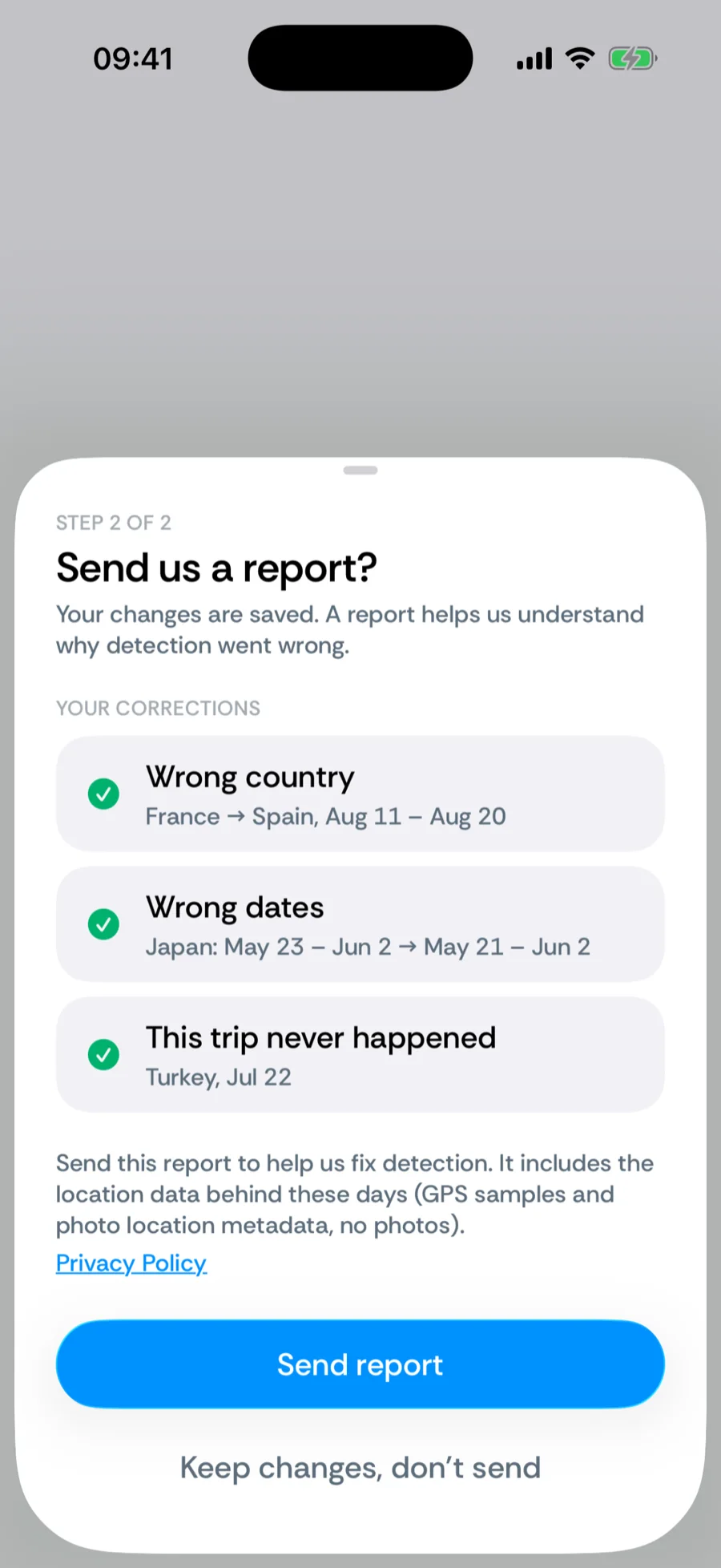
Your changes are already saved by the time you reach step 2. The question now is only whether to share the diagnostics:
- Send report — uploads the report. You see Report sent and the sheet closes on its own. If the upload fails (no connection, for instance), your changes are still saved and you can Try again or skip.
- Keep changes, don’t send — closes the sheet. Your corrections stay; nothing leaves your phone.
What a report contains — and what it doesn't
A sent report holds exactly three things:
- Your corrections — the before-and-after of each fix (country, dates), plus your text if you picked Other.
- Detection diagnostics for the affected days — the GPS samples and photo location metadata Bounded used to place those days, for the trip’s days plus 3 days on either side, capped to the most recent year. No photos are included — only their location, time stamps, and file names.
- A random installation ID — the same anonymous identifier the app uses for analytics. Bounded has no accounts, so there is no name or email attached.
Not included: your photos, trip notes, travel proofs, documents, counters, or anything about days outside the reported range. Reports are stored in Google Cloud Storage (Firebase) in a write-only bucket the app can never read back from, and are deleted after 180 days. See how Bounded handles your data.
Fixing a trip without the sheet
Everything the checklist does is also available as a plain edit — the sheet is just a bundle of those editors with an optional report at the end:
- 1Open the trip from History (or from the country’s detail screen) and tap Edit trip to change its country or dates.
- 2Swipe a trip left in the country detail screen to Delete trip if it never happened.
- 3Add a missed trip with the + button and fill gaps from the calendar — see adding and editing trips.
For the common cause of a wrong country — a border-adjacent GPS fix or a mis-tagged photo — and how to stop it from recurring, read fixing a wrong country in your timeline.
Related articles
Can’t find what you’re looking for? We answer every message.
Contact support