

How to add or edit trips manually
Automatic data gets you most of the way, but sometimes you need to correct a day, record a trip from before you had geotagged photos, or log travel while tracking was off. Every day in your history can be edited — and manual entries always take priority over what photos, GPS, or an imported file detected.
Add a trip
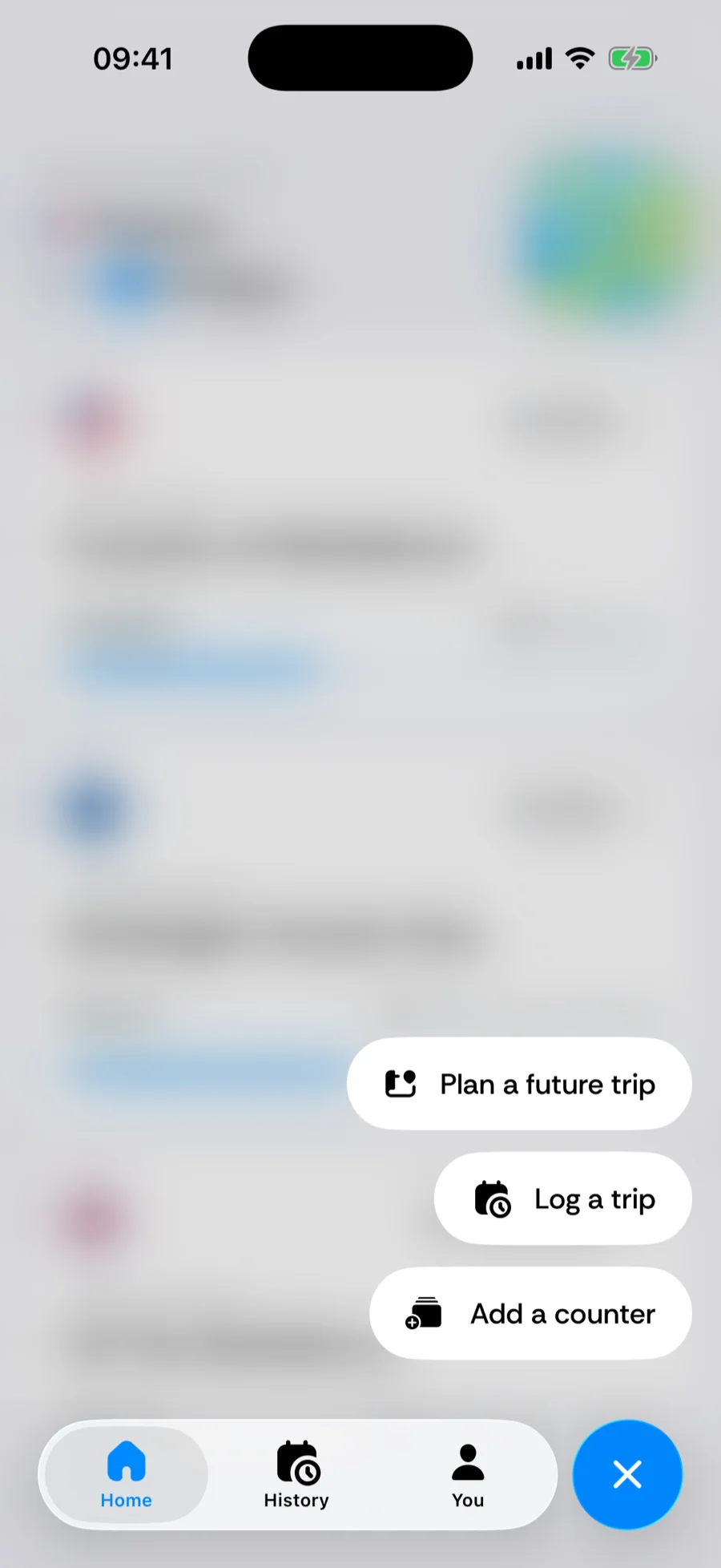
- 1Tap the + in the tab bar and choose Log a trip (iOS 26 or later — see the quick-add menu). You can also tap a day or an empty gap in the History calendar, or tap + in the History toolbar.
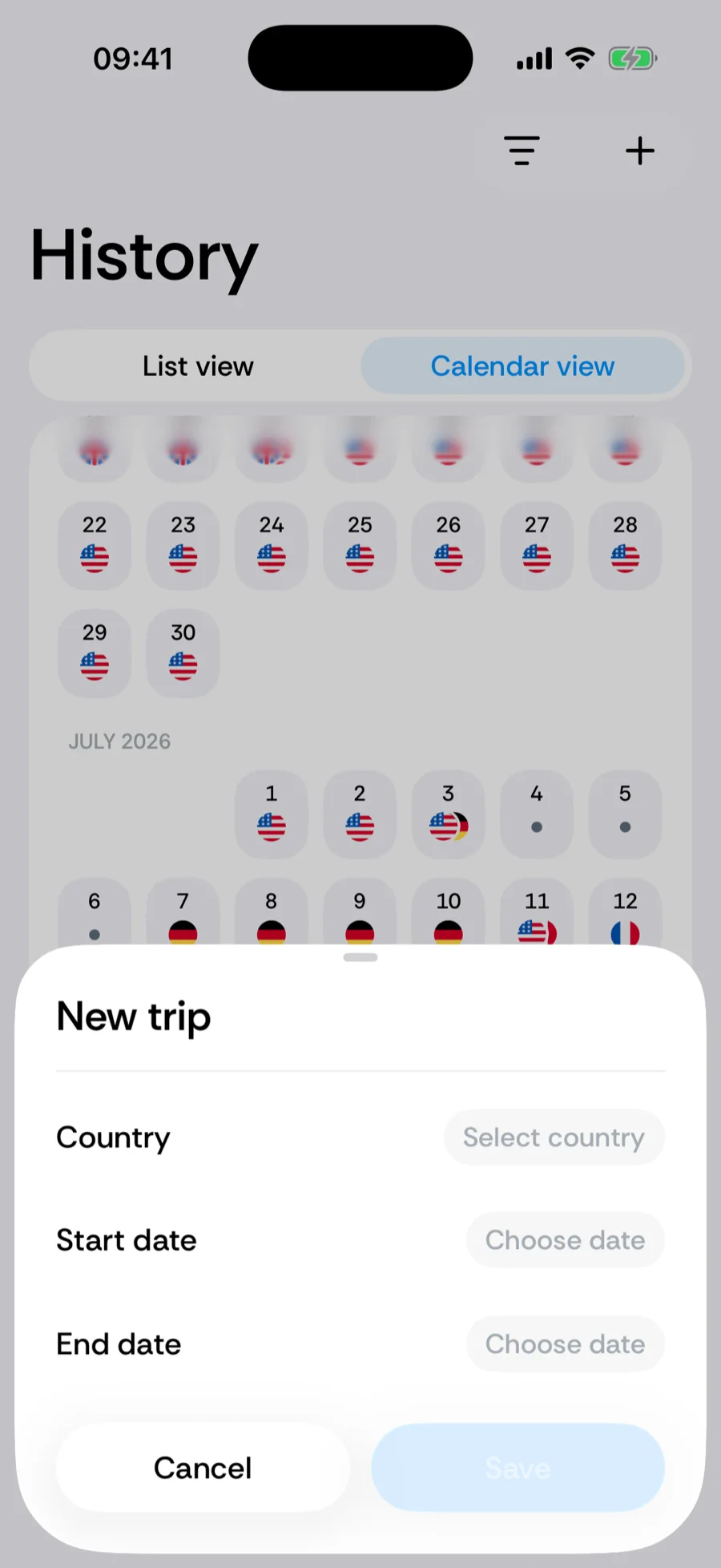
- 2In the New trip sheet, pick the country. For the United States you can also set the state and — where city tracking exists — the city. Days at sea can be recorded as International Waters.
- 3Set the start date and end date — or drag the trip’s edges on the timeline strip at the top of the sheet — then tap Save.
The timeline strip
The strip above the fields shows your trips as capsules. Drag an edge to change a start or end date, drag the body to move the whole trip, pinch to zoom, or expand it to a full-screen calendar. Neighboring trips can share one border-crossing day so nothing is double-counted or left as a gap. Details in the timeline editor.
Edit or delete a trip
In History, tap a trip in the list or a day in the calendar to open it. From the trip’s actions choose Edit trip to change its country or dates, or Delete trip. Deleting a manual trip returns those days to whatever the automatic data says; deleting auto-detected days removes them from your count.
Trips can carry a Work, Personal, or Mixed label — with cabin crew mode on, Work days stay out of your presence counters.
Fill gaps from the calendar
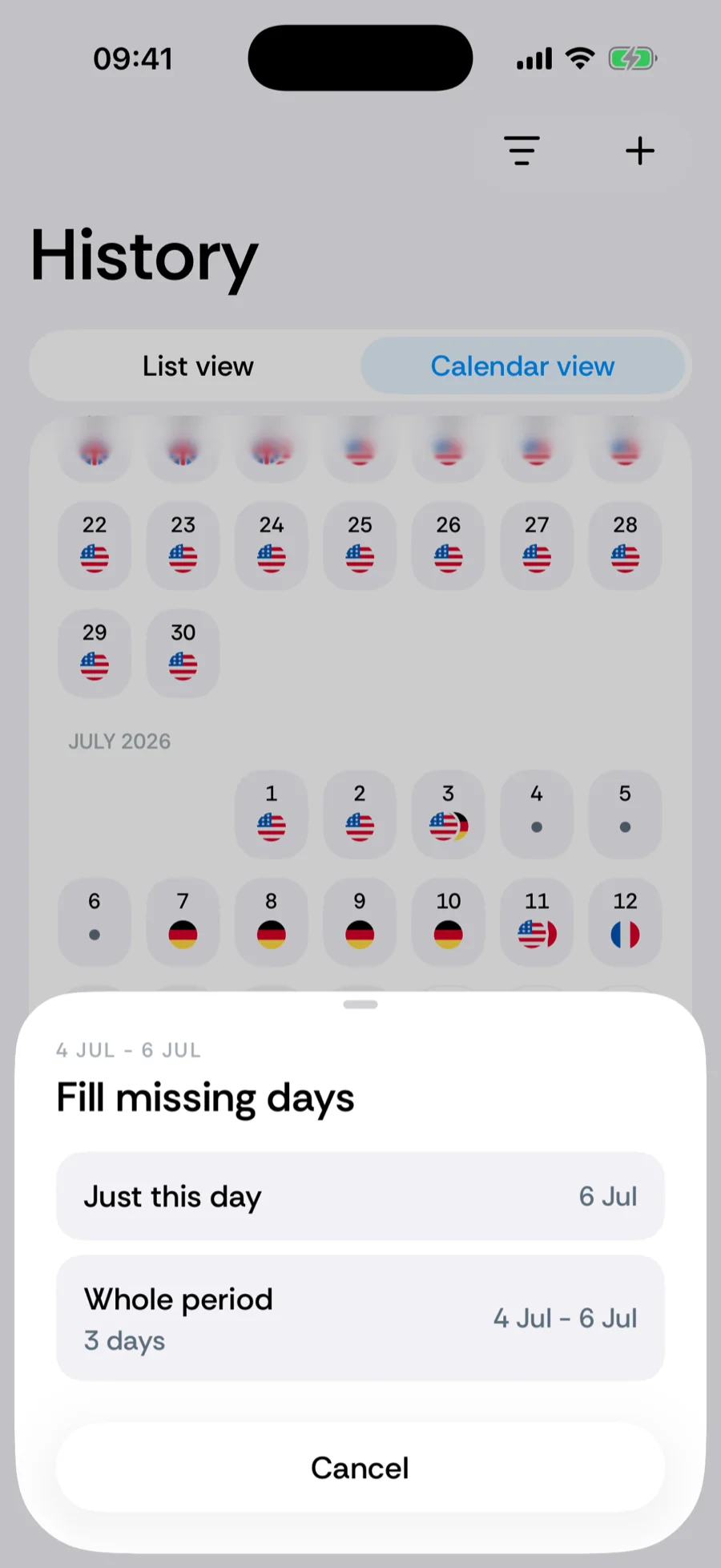
The fastest way to patch a hole: switch History to Calendar view and tap an empty day. Bounded offers to fill just that day or the whole gap — with a neighboring country, a transition between the two, or any other country, including International Waters.
Report a wrong trip
If a detected trip is wrong rather than missing, Report this trip in the trip’s actions fixes it in two taps and, if you choose, sends us the detection details so the same mistake stops happening. See reporting a wrong trip.
Related articles
Can’t find what you’re looking for? We answer every message.
Contact support