


How to find a counter — or request one we don't have yet
Bounded’s counter catalog holds well over a hundred built-in rules — visa caps, tax-residency tests, residency and citizenship absence limits, US state rules. Scrolling the tabs works, but since Bounded 2.1 the faster way is to search. And when the rule you need is not there, you can ask for it from the same screen.
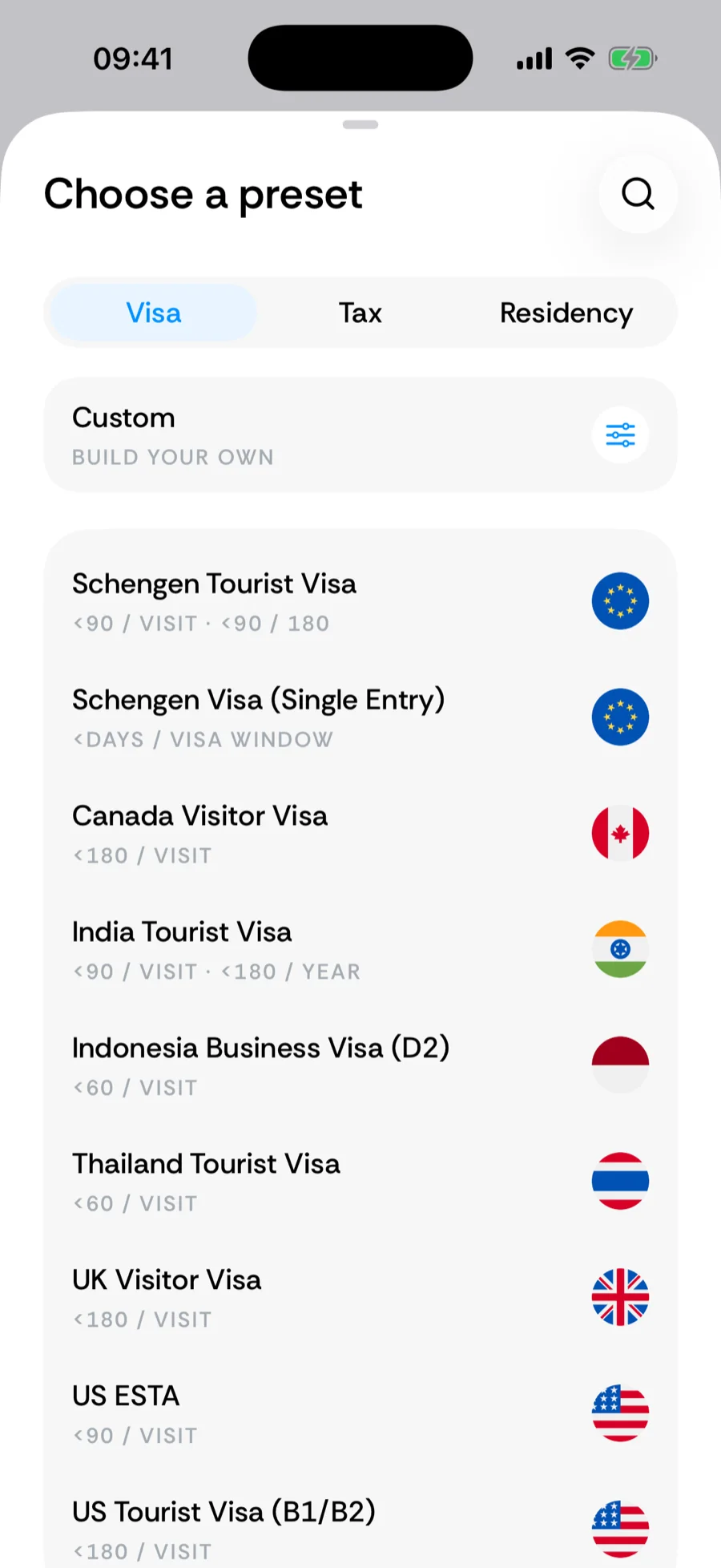
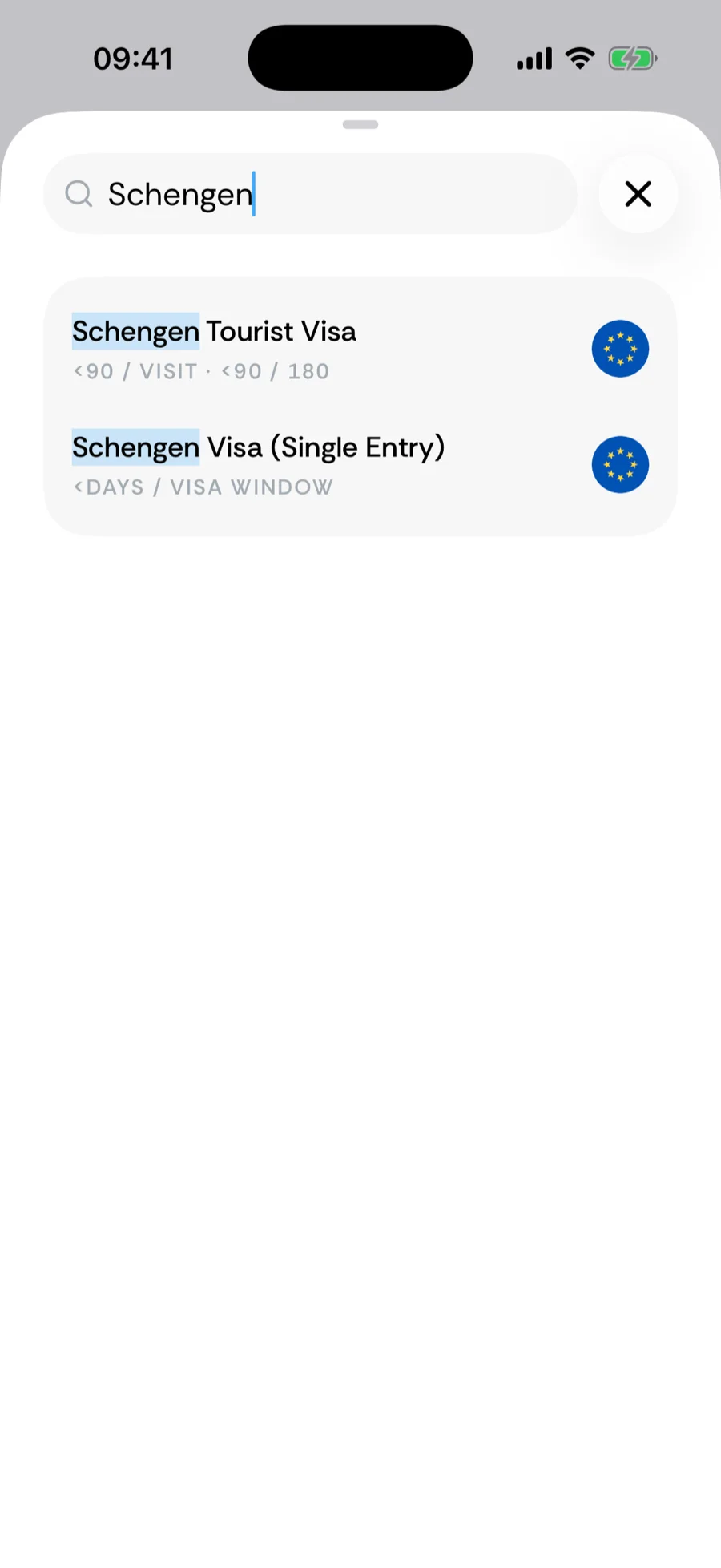
Searching the catalog
- 1Open the catalog: tap + in the tab bar → Add a counter (on iOS 26), or use Browse all counters on Home.
- 2Tap the magnifier in the top corner. The title Choose what to track is replaced by the Search counters field, with the keyboard already up.
- 3Type what you know. The matching words are highlighted in every result, so you can see why a counter matched.
You do not need the exact preset name. Any of these finds the right counter:
- A country — Portugal, Canada, UAE.
- A visa or permit — ESTA, Schengen, green card, Skilled Worker.
- Rule words — 183, tax residency, substantial presence, golden visa.
Tap a result to open the counter builder pre-filled with that rule. Tap × next to the field to leave search and go back to the tabs.
On the tabs, counters your passports and residence permits (on the You tab) make unnecessary sit last, under Probably not needed — a visitor visa for a country you are a citizen of, a residence permit or naturalisation clock where you already hold citizenship, a Schengen visa with an EU passport. They stay tappable, since people also set up counters for a partner or a passport they haven’t added.
When nothing matches
A search with no results shows We couldn’t find any counters matching your search and a Request it button. Tap it and the request sheet opens with your search already filled in as the counter name — one more tap on Send is usually all it takes.
You can also request a counter without searching first: scroll to the bottom of the catalog and tap Something missing? Tell us and we’ll build it. The same sheet opens, empty.
The request sheet
The sheet asks Which counter are you missing? and has two fields:
- Counter (required) — the rule or visa you wanted, in your own words.
- Details (optional) — country, visa or rule, a link — anything that helps us find the exact law or policy. A day limit and the window it applies to are the most useful details.
Tap Send. You see Thanks, that helps. and the sheet closes on its own. If the upload fails, the button changes to Try again; nothing is lost. Not now closes the sheet without sending.
What happens to a request
- A real person reads it. Requests land in the team’s storage and are reviewed regularly; the most asked-for counters are built first, which is why a short request still counts.
- There is no reply. A request is one-way — Bounded has no accounts, so there is no email or name to answer to. You will find out a counter shipped when it appears in the catalog after an update.
- What is sent. Your counter name and details, the search you typed (if you came from the empty state), your home base country, the app version and device model, your language and time zone, and a random installation ID. No travel data, counters, documents, photo metadata, or purchase information — see how Bounded handles your data.
Meanwhile: tracking the rule yourself
A request can take a while to become a preset. You do not have to wait to start counting:
- Build a custom counter — pick the region, the day limit, the counting window, and whether you are staying under a cap or reaching a goal. Most visa and tax rules fit one of the built-in shapes.
- Start from a recipe — worked examples for fiscal-year rules, rolling windows, and per-visit caps with an annual total.
- Unsure how to model a rule, or need an answer rather than a counter? Contact Support — that channel does get a reply.
Related articles
Can’t find what you’re looking for? We answer every message.
Contact support