

The You tab: documents, goals, and settings
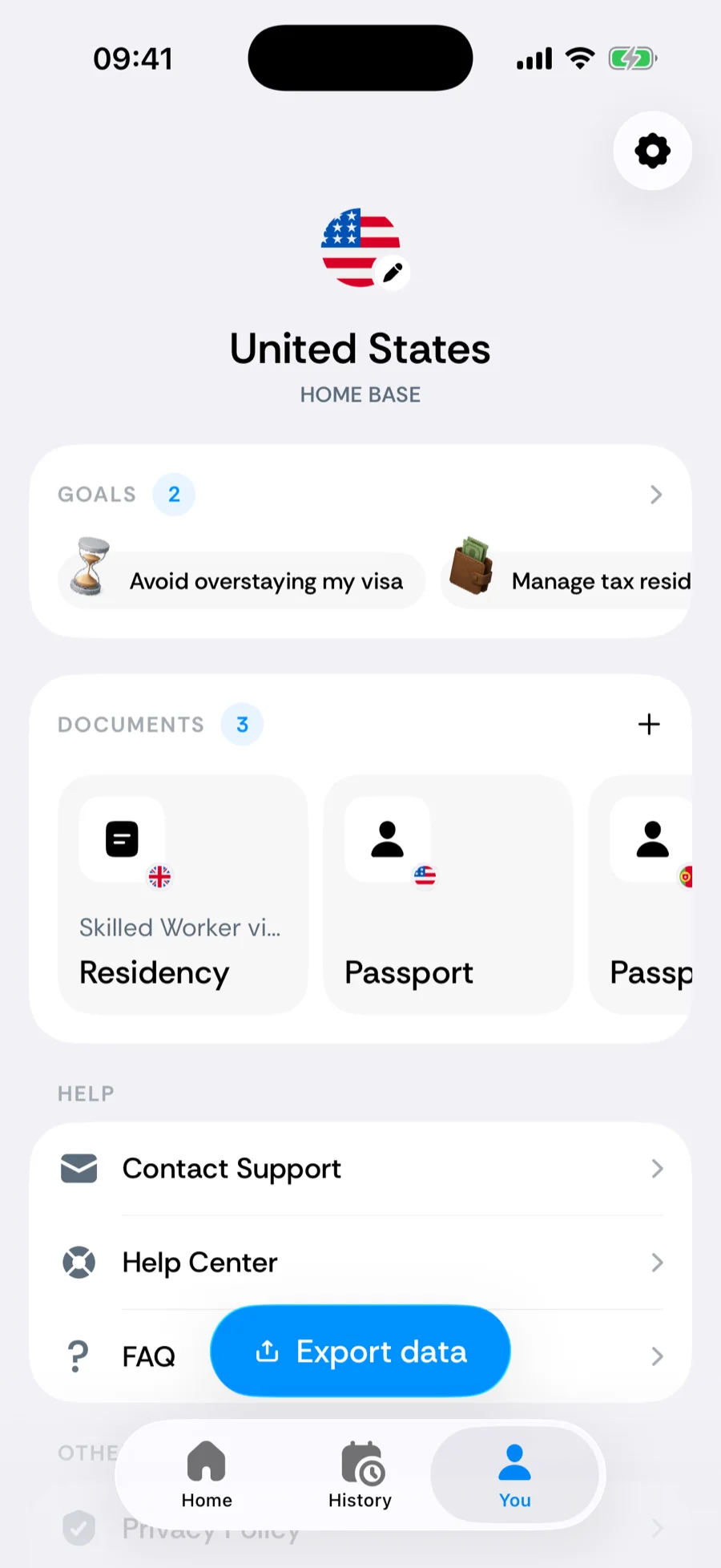
The You tab is your profile hub: your home base, your goals, the travel documents you carry, and the way into your travel reports, your data, Settings, and support. It replaced the old Settings tab in version 1.10 — everything that used to live there is still in the app, one tap away from here.
What's on the tab
- Home base — the header shows your country of residence; tap it to pick a new one (or Nomad mode).
- Goals — the goals that tune Bounded’s counter suggestions. Tap the card to change them; see what goals change.
- Documents — your passports, visas, and residency permits as a strip of cards. More on these below.
- Travel reports — formal PDF reports for visa, citizenship, and tax applications.
- Cabin crew mode — keeps Work-labeled days out of most counters; the (i) next to it explains the exceptions. See Cabin crew mode.
- Your data — Import travel data, Re-sync from photos, and Export data (a CSV of your history).
- Help — Contact Support, this Help Center, and the FAQ.
- Other — redeem a promo code, Privacy Policy, and Terms.
- Settings — the gear in the top corner opens Settings: notifications, appearance, tracking controls, widgets, and deleting your data.
Travel documents
A document records what lets you be somewhere: a passport, a visa, or a residency permit. Each one carries the issuing country, optional issue and expiry dates, an optional custom label, and photo or PDF attachments — so the document you need at a border or an appointment is always at hand.
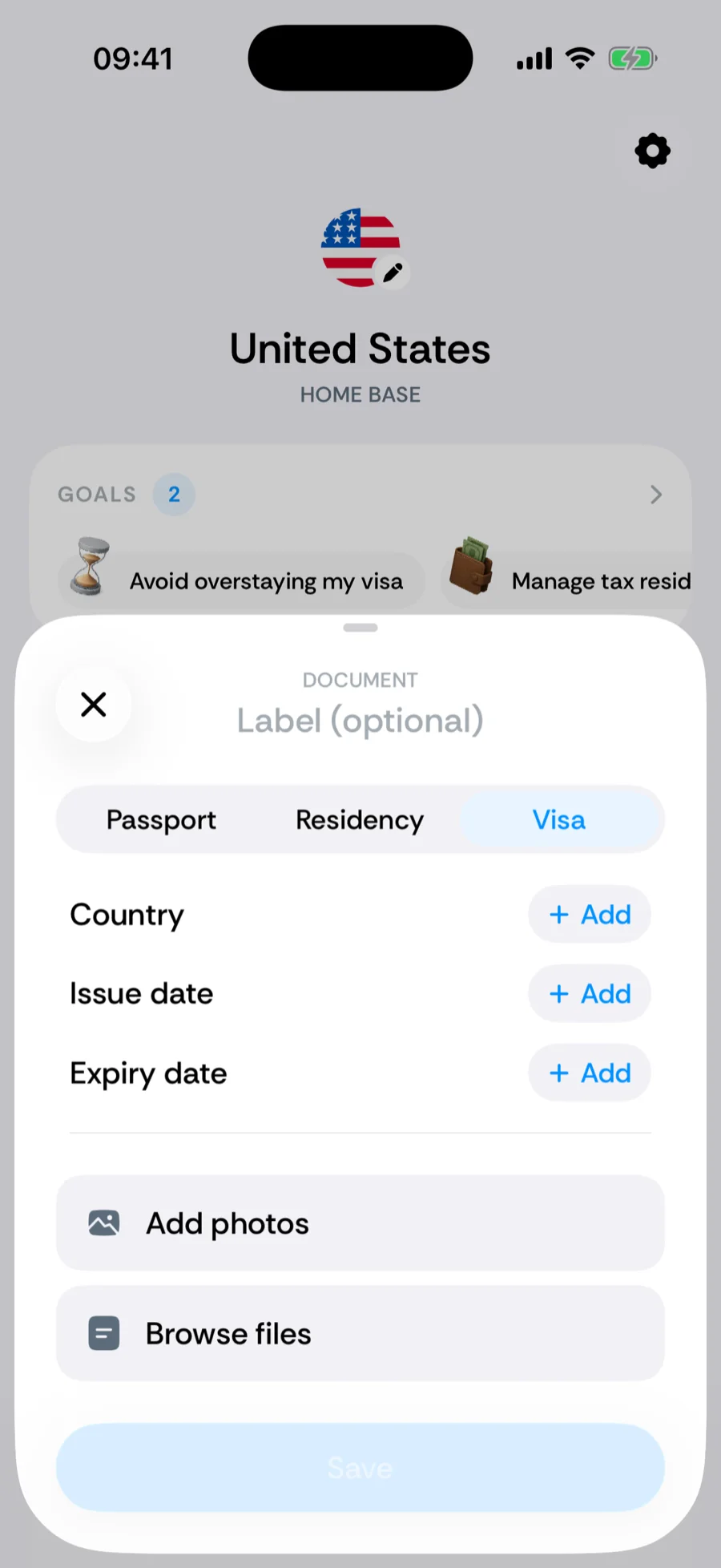
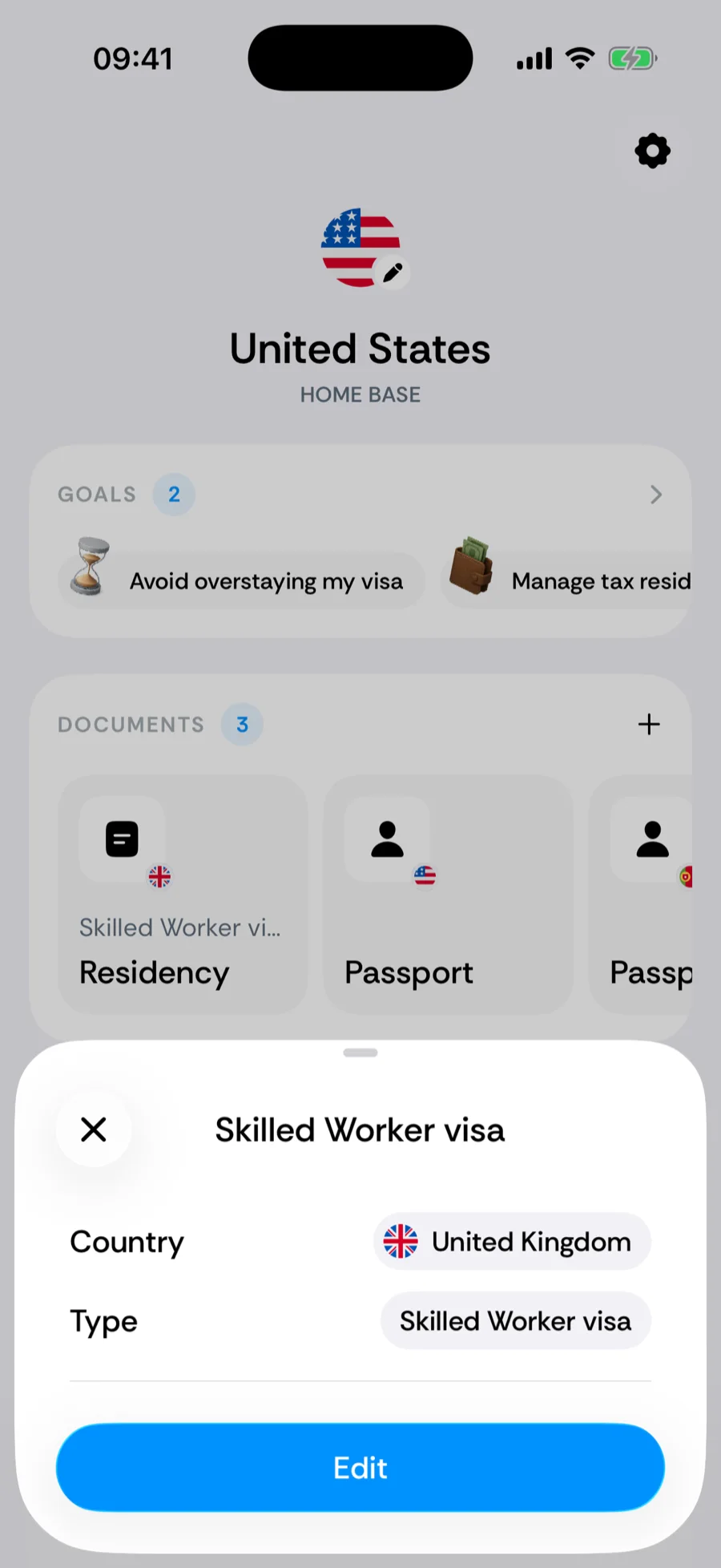
For visas and residency permits in commonly tracked countries — the US, UK, UAE, Spain, Canada, Germany, Australia, India, France, Brazil, Mexico, and Portugal — Bounded also offers a Type picker with the real statuses for that country (H-1B, Green Card, Skilled Worker visa, ILR, Golden visa, digital nomad visas, and many more), grouped by purpose: work, study, family, investment, permanent residency, or other. For any other country, give the document your own label instead.
Where Settings went
Settings opens from the gear in the top corner of the You tab. Inside you’ll find General (Notifications, appearance, haptics, first day of week), Features (Smart tracking, Protect travel proofs, widgets), and Data (erasing or deleting your data). Your app version is at the bottom of the Settings screen.
Related articles
Can’t find what you’re looking for? We answer every message.
Contact support