


How to import travel data (Google Timeline, Flighty, TripIt, CSV)
If another app already knows where you have been, you don’t have to type years of trips by hand. In Bounded 2.1 or later, You → Your data → Import travel data reads a Google Maps Timeline export, a Flighty flight list, a TripIt or any other .ics calendar, or a plain spreadsheet, turns it into days per country, and shows you every stay before anything is saved.
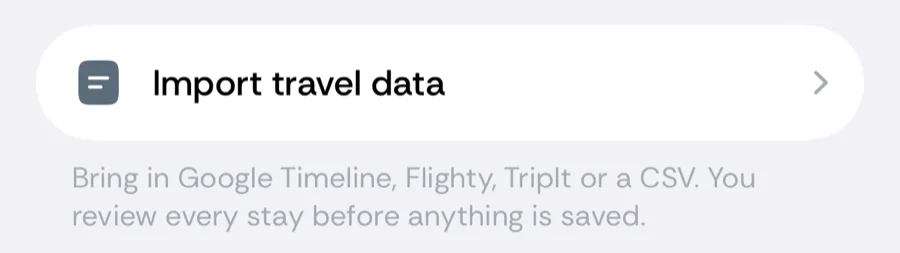
What you can import
Bounded detects the format from the file itself — you never pick it. The Import travel data sheet lists the four supported sources with the export path shown in the app:
- Google Timeline — Google Maps > your profile > Your Timeline > Export. The on-device Timeline JSON works, and so do a Google Takeout export and the older Semantic Location History files.
- Flighty — Flighty > Settings > Export. A CSV of your completed flights.
- TripIt — Calendar feed or an .ics file with your flights. Any .ics calendar works as long as it contains flight-shaped events (a flight number, a departure and an arrival airport).
- CSV — Any spreadsheet with date and country columns. Either a date column plus a country column, or date plus from and to for movements. Tab-separated files are accepted too.
ZIP archives and unknown file types are not supported — unpack an archive first and pick the JSON, CSV or .ics file inside it. Files up to 200 MB are supported.
Step by step
- 1Export the file from the source app using the path above, and save it somewhere your phone can reach — Files, iCloud Drive or a folder synced to the device.
- 2In Bounded, open the You tab and, under Your data, tap Import travel data. Tap Choose file and pick the export.
- 3Wait while Bounded processes it. The progress caption moves through Reading file, Detecting countries and Checking against your timeline — the last step compares every detected stay with what your history already contains.
- 4Review the detected stays (see below). Untick anything that does not look right.
- 5Tap Import N days — the count reflects the rows you left ticked. The result screen says Imported N days and names the countries that are now on your timeline; if the file contained flights, it adds N flights added as travel proofs.
Everything runs on your phone. The file is never uploaded anywhere.
Reading the review screen
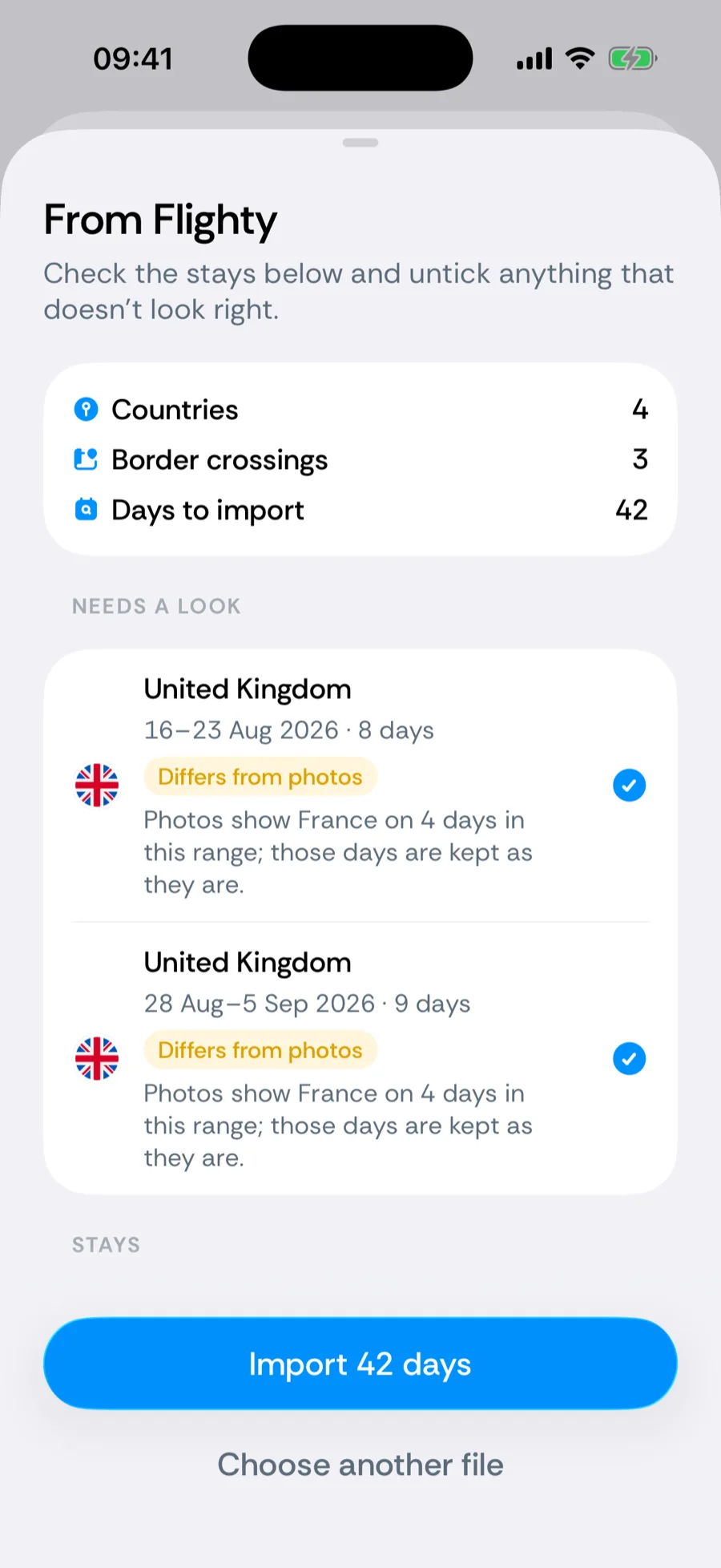
The review step is titled From Google Timeline, From Flighty, From Calendar or From CSV, depending on what was detected. Under a quick summary (countries, border crossings and Days to import) you get up to four groups:
- Needs a look — stays that disagree with your photo records. They are unticked by default; tick a row if the file is right and your photos are misleading.
- Stays — everything else Bounded is ready to add, ticked by default.
- Kept as is (collapsed) — days the import will not touch because your timeline already has a manual edit or a GPS record for them, shown as N days already set manually, N days from GPS or N days from photos.
- Skipped (collapsed) — rows the parser could not use, grouped by reason: unreadable dates, no place listed, unknown airports, cancelled flights, rows that are not flights, places outside any country, unknown countries, broken rows.
Two badges can appear on a stay:
- Filled between flights — the file only recorded movements (for example a flight into Japan and another out of it two weeks later), so the days in between were inferred as one continuous stay.
- Differs from photos — your photos place you in another country on some of these days. The caption names the country; where the inferred stay was interrupted by photo days, those photo days are kept and the row says so.
How imported days merge with your history
Every day in Bounded has a source, and sources have a fixed priority: Manual > GPS > Imported > Photo > Planned. That order decides what happens when an imported stay overlaps something already on your timeline:
- An import never overwrites a manual edit or a GPS day. Those days land under Kept as is.
- Where the import agrees with your photos, nothing changes; where it disagrees, the row moves to Needs a look and stays unticked until you decide.
- Imported days replace planned days, and fill days that had nothing at all.
What you see afterwards
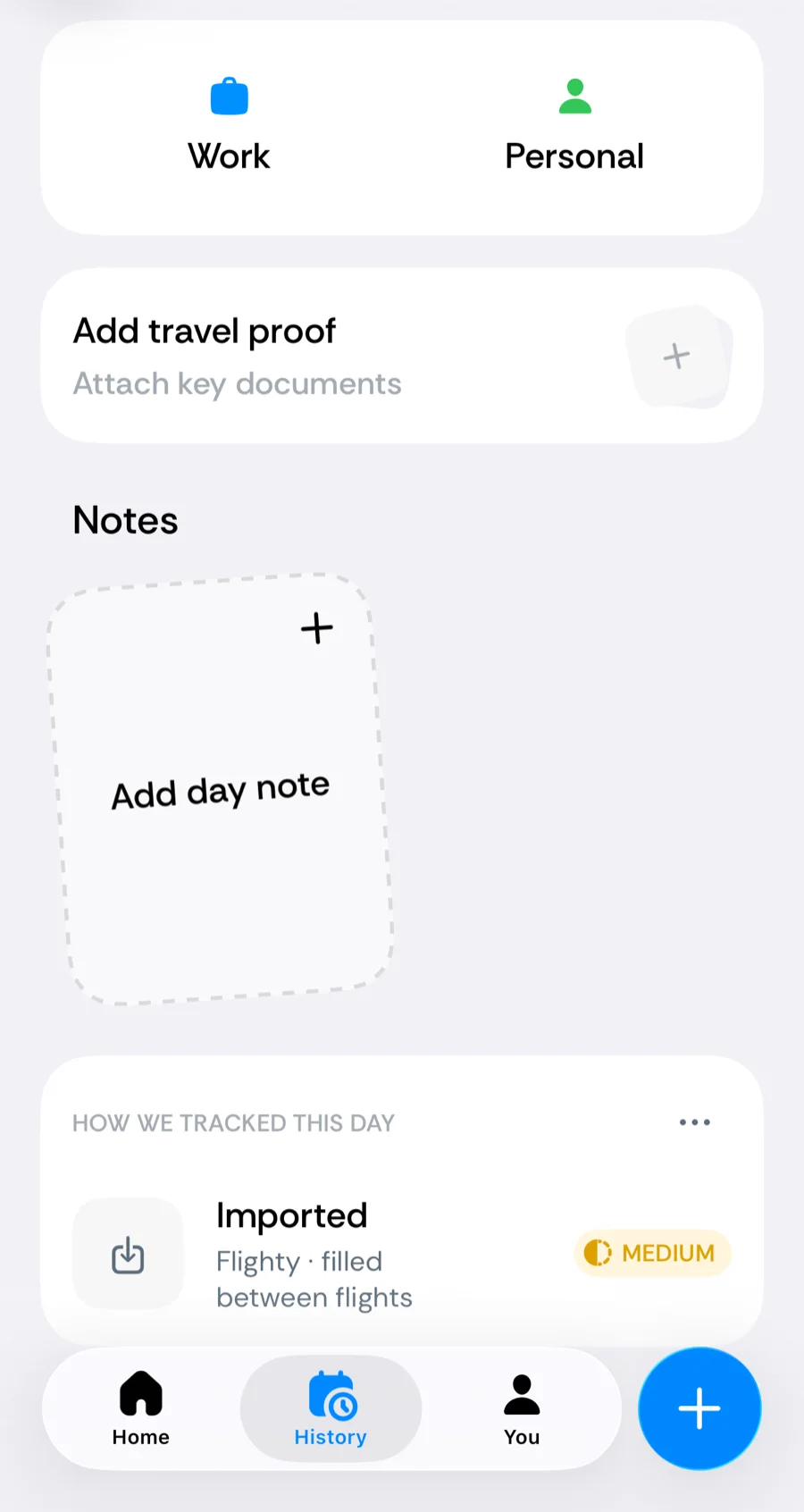
Tap any imported day in the calendar and the How we tracked this day list shows a row titled Imported, with the source and — for flights — the flight designator, or filled between flights for inferred days.
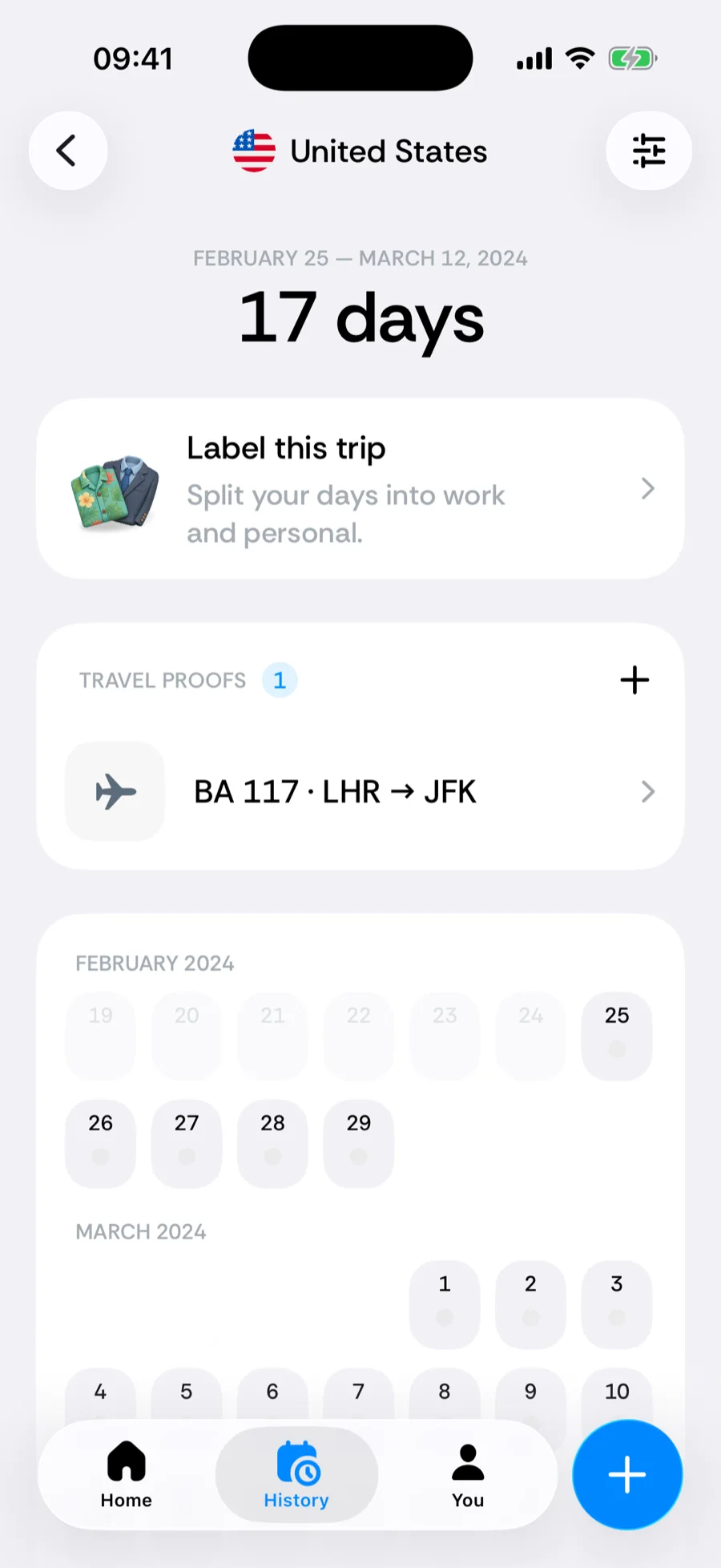
Flights from Flighty or a calendar are also attached to the resulting trips as travel proofs — one per flight, titled with the flight number and route, with the details line Imported from Flighty (file.csv). Re-importing the same file does not duplicate them.
Limits and troubleshooting
- This file is too large — the limit is 200 MB. Export a shorter period from the source app.
- That file type isn’t supported — Bounded reads JSON, CSV and .ics. ZIP archives need to be unpacked first; pick the file inside.
- No travel found in this file from Flighty — the export must contain completed flights between airports Bounded knows. Cancelled flights and flights with unknown airport codes are skipped.
- No travel found in this file from a CSV — Bounded needs rows with both a date it can parse and a country name it recognises (or from/to columns). Check the header row and the date format.
- No travel found from a calendar — the .ics had no flight-shaped events. Try the export from your flight-tracking app instead.
- There is no one-tap undo. An import is applied as ordinary timeline data, so to reverse it you edit or delete the resulting trips. Your manual edits win permanently over anything imported.
Related articles
Can’t find what you’re looking for? We answer every message.
Contact support