


How to plan future trips
Bounded used to stop at today. In Bounded 2.1 or later, a trip can start or end after today, so you can put a booked flight, a planned stay or a return date on your timeline and see what it does to your counters before you travel. Future days are stored as Planned and are replaced by real data as each day arrives.
Add a future trip
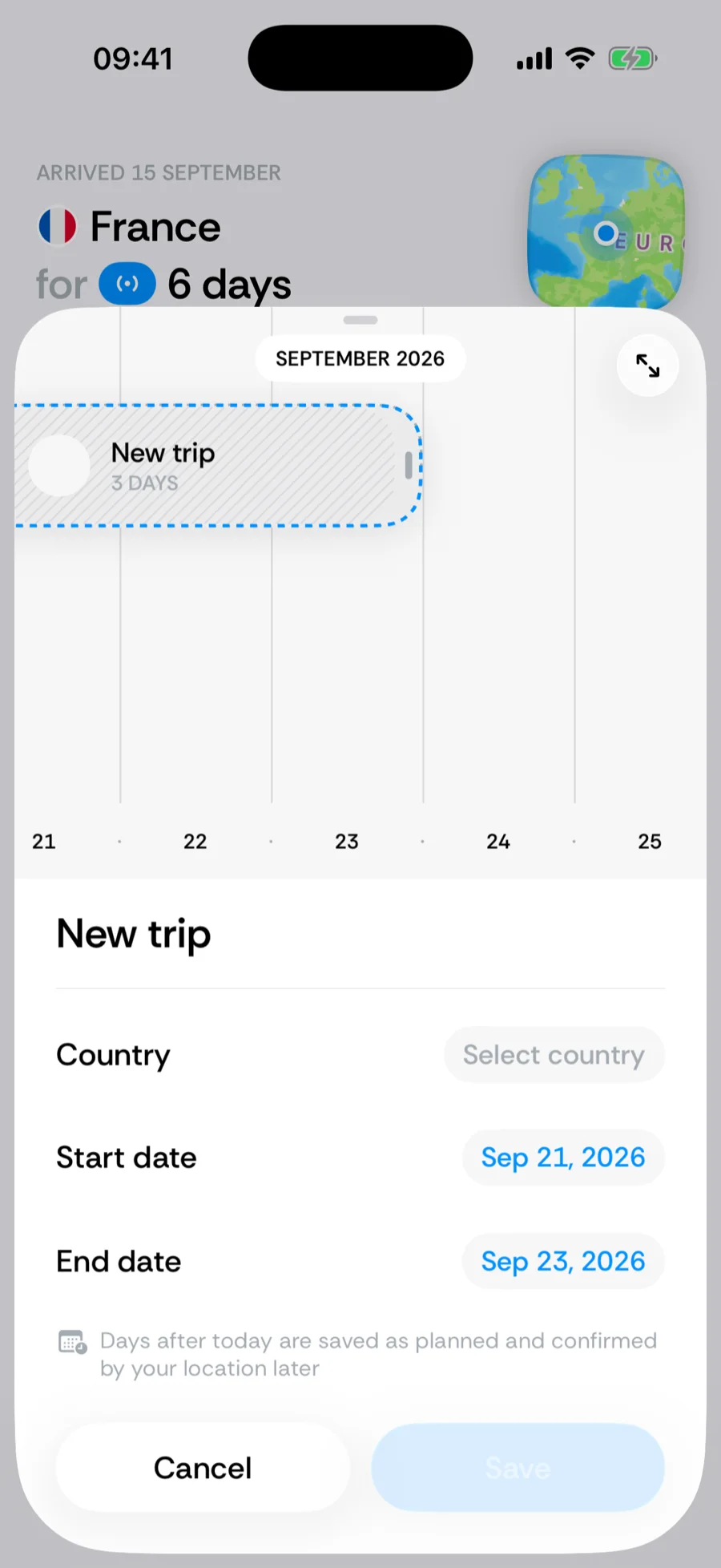
- 1Tap + in the tab bar and choose Plan a future trip. The trip editor opens with a draft that starts tomorrow. You can also add a trip from History as usual — the date picker simply no longer stops at today.
- 2Pick the country (and, for the United States, the state or city if you track them).
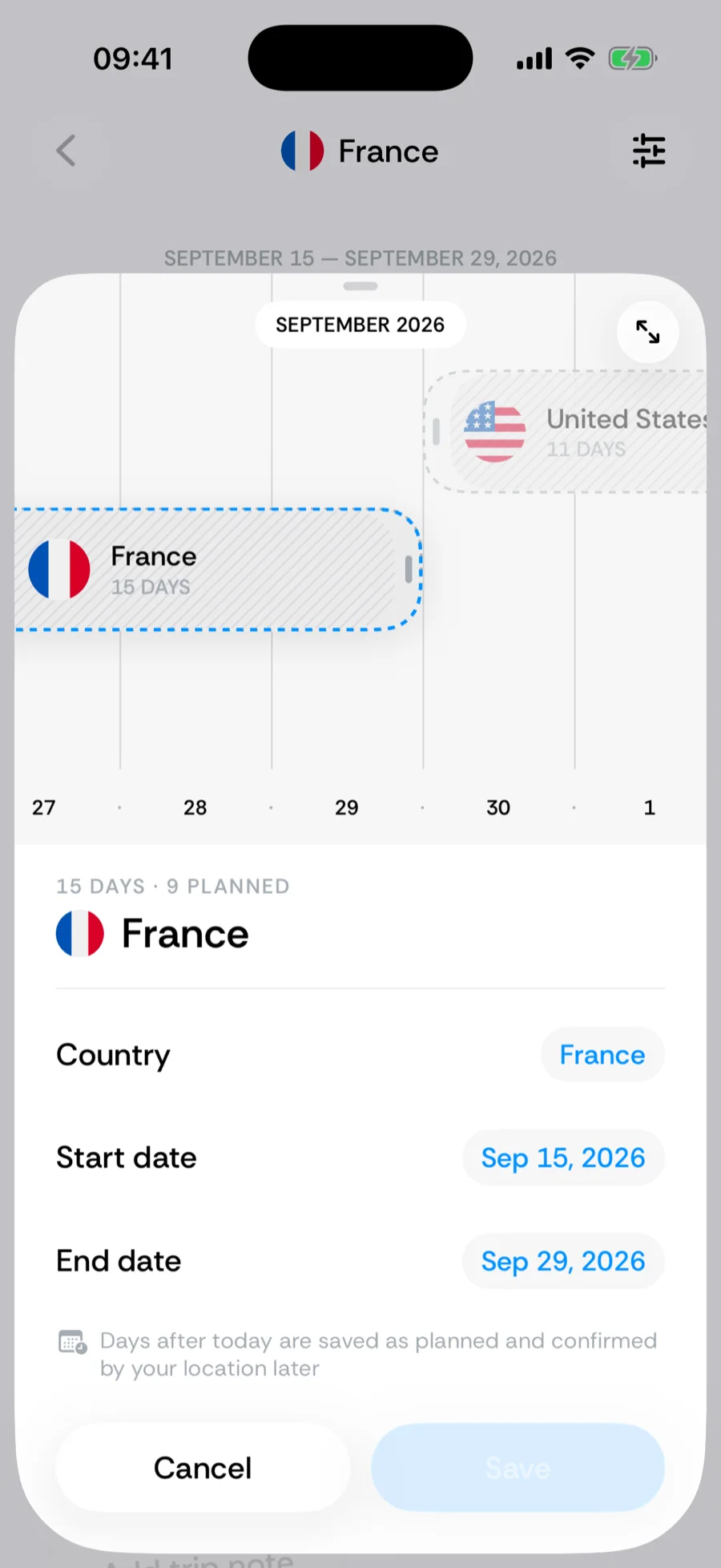
- 3Set the start and end dates. Either or both can be after today: a trip that has already begun but has a booked return date is a future trip too. The start date can go into the future without moving the end date first — pick a start after the end and the end is cleared, ready to set again.
- 4Tap Save. The days after today are written with the source Planned.
Where planned trips show up
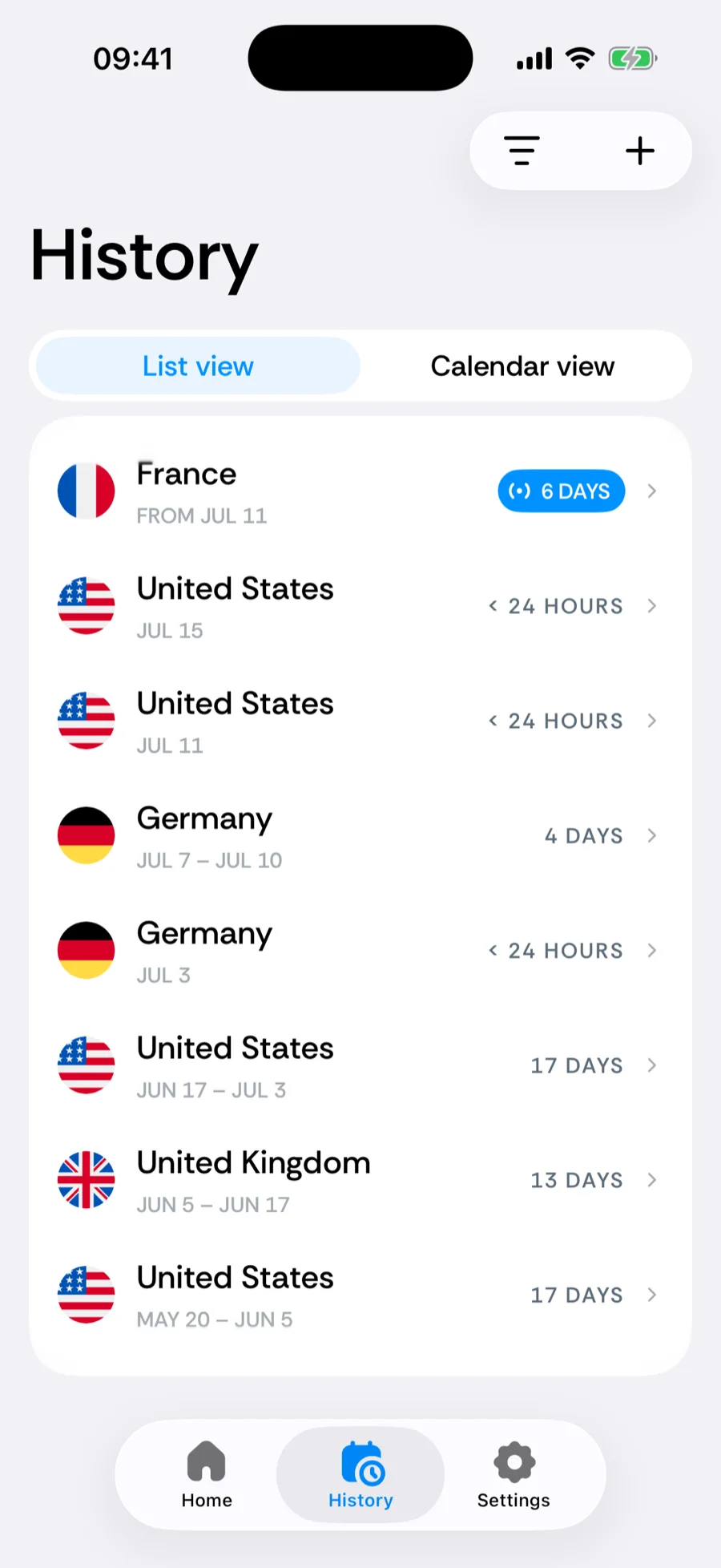
- History → List — upcoming trips are listed above your ongoing stay, so what comes next is always at the top. Badges never truncate, however many trips you have booked.
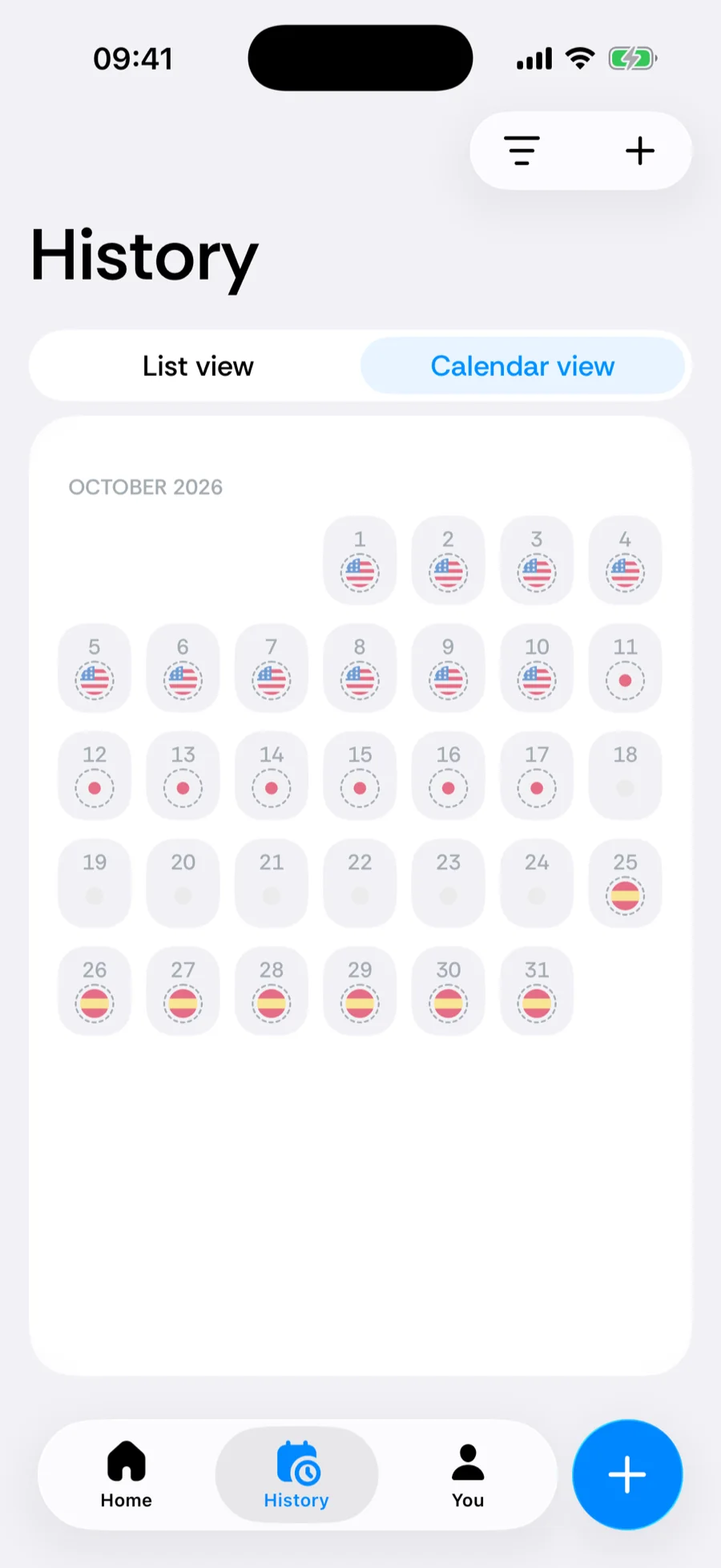
- History → Calendar — future days are drawn like any other day of that country, so a booked two-week trip is visible at a glance.
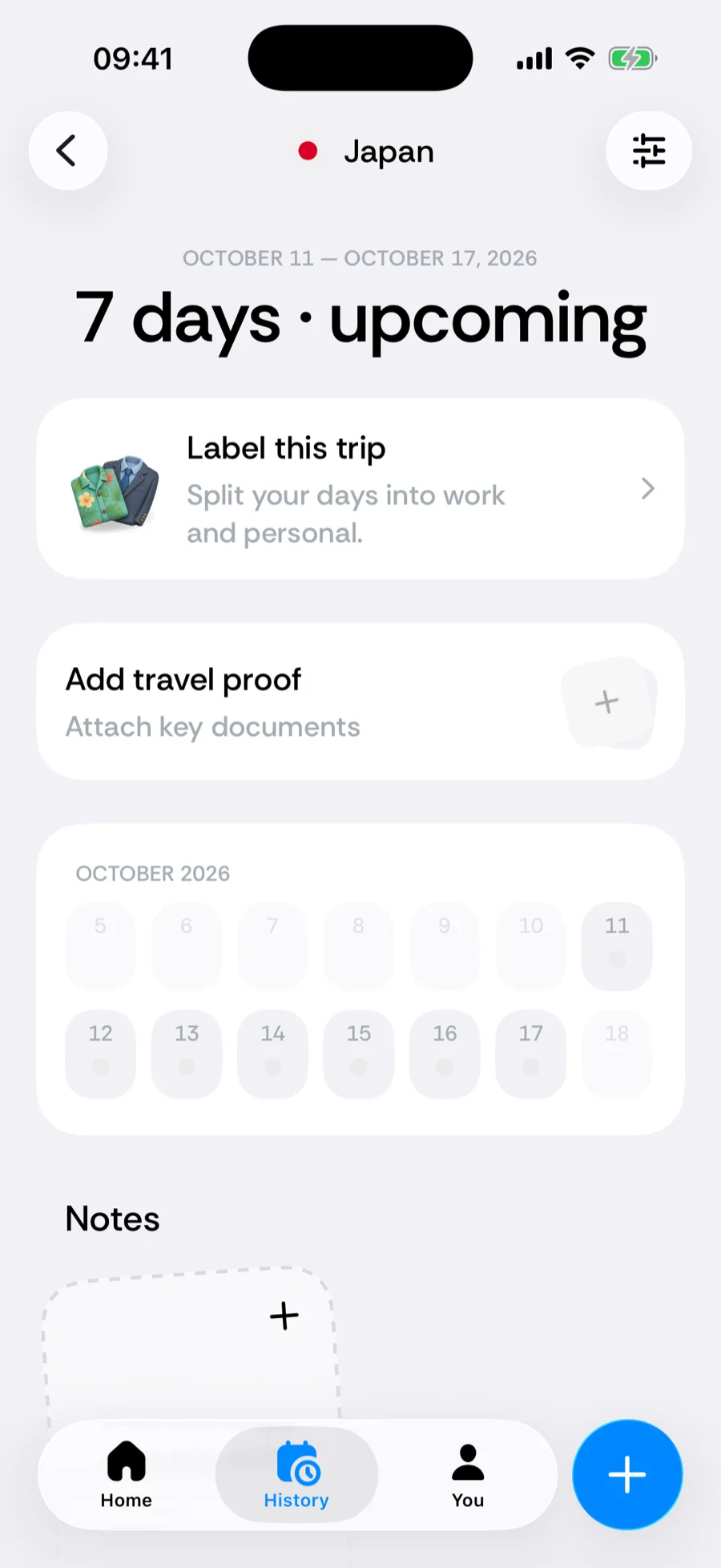
- Trip detail — a trip with a planned end shows leaving {date} in place of a past end date.
- Home header — if your current stay has a booked end, the location header reads Arrived {date} · leaving {date}.
- Day detail and exports — a future day shows the source Planned, both on the day screen and in the source column of day-level CSV exports.
What happens when the day arrives
Planned is the lowest-priority data source — the order is Manual > GPS > Imported > Photo > Planned. As each planned day becomes today, whatever Bounded actually observes takes over: a GPS fix, a geotagged photo, an import or a manual edit all replace the planned day. If nothing is observed, the planned day stays where it is, and the day screen notes that your location never confirmed it, so you can confirm it or edit the trip.
In practice that means a plan you keep needs no maintenance, and a plan you change simply gets overwritten by where you really were.
How counters use planned days
Counters that project forward — the ones that tell you when you will hit a limit, or how many days you have left — include planned days in their forecast. Book a three-week trip inside the Schengen area and your 90/180 counter shows right away what your count will be once the trip is over — and, if the trip would take you past 90, the first day over the limit — rather than on the day you land. See how counting windows work for what each rule projects.
Today’s totals are not inflated: a planned day is a forecast, not a day you have spent. The counter’s current number, your statistics, widgets, the travel map and exports only count days up to today. The projection shows as a coloured strip under the counter card — +12 days with planned trips, or Over the limit on 26 Oct with planned trips when the trips cross the limit — with a small projected number beside the value and the planned stretch striped on the bar. The colour says what the trips do: red if they overstay or put a goal out of reach, yellow if they bring a limit close, green if they meet a goal or leave you further from the limit, gray if they change only the number. The breakdown lists the booked trips it is made of below the trips you have actually taken.
Cancel or change a plan
A planned trip is an ordinary trip. To cancel it, open it from History and Delete trip; to change it, edit its dates or country like any other trip — including on the timeline strip, where you can drag the planned end forward or back. Deleting a planned trip removes its future days entirely, since there is no automatic data underneath them yet.
Related articles
Can’t find what you’re looking for? We answer every message.
Contact support