

Moving Bounded to a new iPhone
Bounded has no account and no cloud copy of your travel data — everything lives on the phone in your hand. That is the point of its privacy model, but it means a phone switch deserves two minutes of care.
The safe path: restore from an iPhone backup
- 1Set up the new iPhone by restoring from a backup of the old one — iCloud Backup or a wired transfer. App data rides along, so Bounded arrives with your full history, counters, and settings intact.
- 2Open Bounded and check the History tab — your timeline should be exactly as you left it.
- 3Re-grant permissions if asked: Always location for GPS tracking, and photo access for future re-syncs.
Belt and suspenders: export before switching
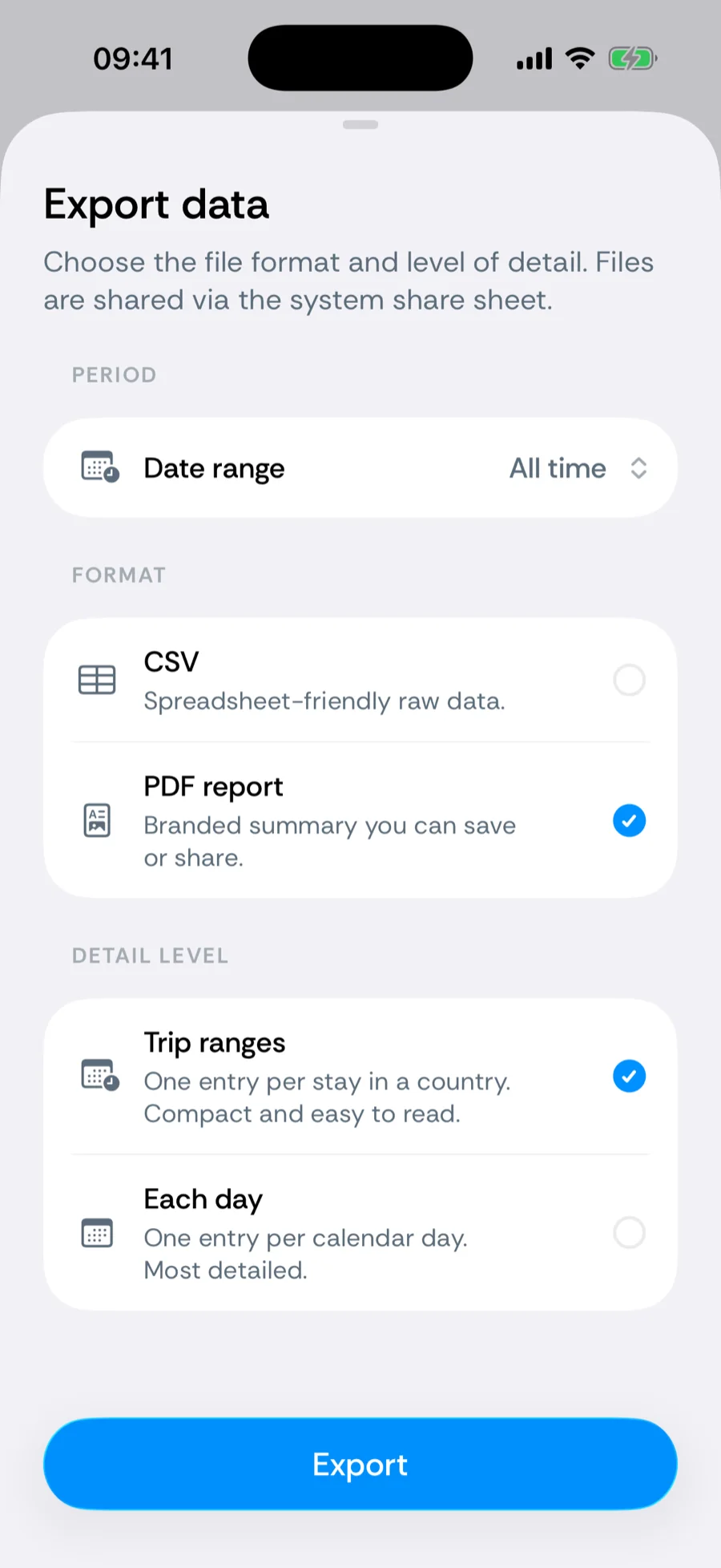
Whatever path you take, export your history (CSV with Each day detail is the most complete) before wiping or trading in the old phone. Worst case, you re-import reality: the photo scan rebuilds most of the timeline on the new phone, since your photo library syncs through iCloud — only GPS-detected and manual days would need the exported record to reconstruct by hand.
Your subscription
Subscriptions follow your Apple ID, not the device. On the new phone, if Bounded does not recognize your subscription, open the paywall and tap Restore purchases.
After the move
- Confirm GPS and Photos are on: You → Settings → Detect countries from.
- Re-add widgets — Home Screen layouts transfer with backups, but if you set up as new they need re-adding.
Related articles
Can’t find what you’re looking for? We answer every message.
Contact support