


How to erase or delete your data
Because Bounded keeps everything on your device, deleting data is immediate and final — there is no server copy of your timeline, no retention window, nothing to request (the only things we ever hold are the correction reports, counter requests, and cancel-reason answers you chose to send, and those expire after 180 days). You → Settings → Data (Settings opens from the gear on the You tab) offers two levels.
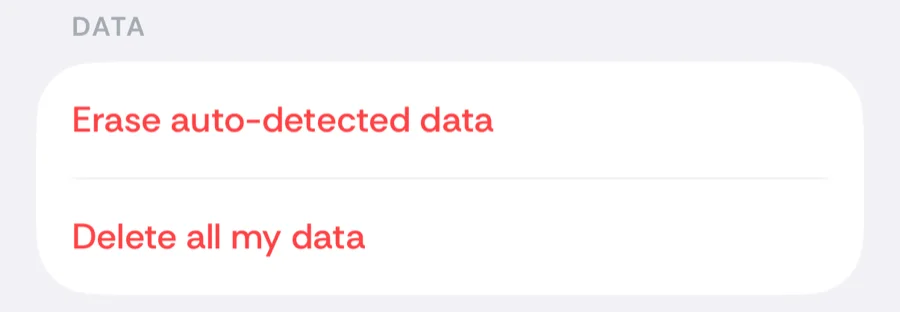
Erase auto-detected data
Removes every day that came from the photo scan or GPS tracking. Trips you added manually stay. Use it when the automatic record went wrong somewhere and you would rather re-detect than untangle it — a fresh Re-sync from photos afterwards rebuilds the photo timeline from scratch.
Delete all my data
The full wipe: every trip, day record, counter, and setting is permanently removed from the device, and the app returns to onboarding as if freshly installed. Nothing about your travel history survives this.
- Your subscription is not lost — it is tied to your Apple ID, and Restore purchases brings it back after re-onboarding.
- Want to keep a copy first? Export your history as PDF or CSV before deleting.
Deleting the app
Removing Bounded from your iPhone deletes its local data with it (an iPhone backup may retain a copy until it rotates). There is no account to close and no server-side data to chase — see what leaves your device for the short list of third-party telemetry.
Related articles
Can’t find what you’re looking for? We answer every message.
Contact support